
Using the Motion Terminal Oscilloscope: Read Iq, Id, Speed, Position
Introduction
You cannot tune what you cannot see. A current loop that looks fine on paper can still ring, saturate, or drift once a real load hits it. Without a live view of the motor, you are guessing, and guessing on a closed-loop drive wastes hours.
The built-in oscilloscope in SOLO Motion Terminal fixes that. It plots the motor’s internal signals in real time, so you watch Iq, Id, speed, and position move as you change a gain or a setpoint. This guide shows you what the scope samples, how to read each signal, and how to use that view to tune faster.
The Built-in Oscilloscope
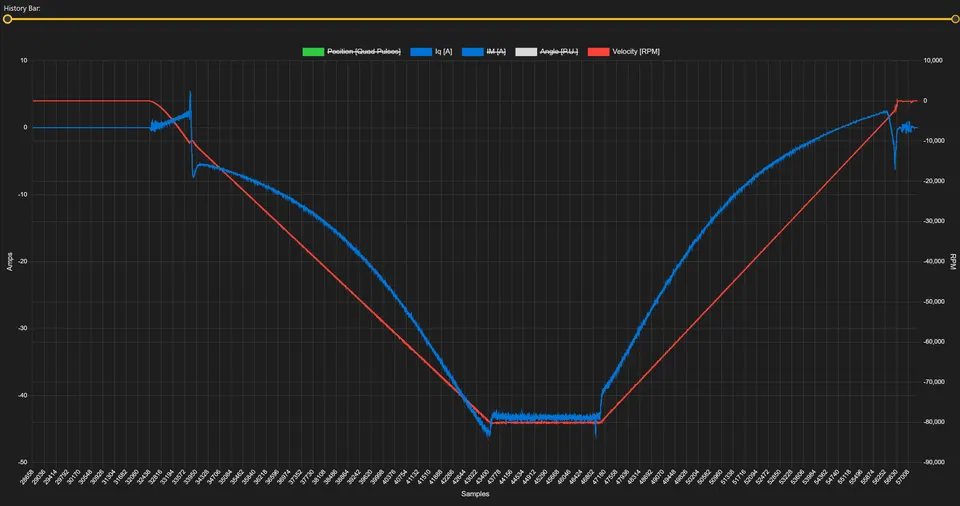
The Motion Terminal monitor mode turns the app into a software oscilloscope for the motor. Instead of probing a physical pin, it streams values straight from the controller over the same link you use to configure it. You pick the channels you want, press start, and the curves scroll across the screen.
You can plot up to four channels at once. That is enough to watch a torque current, a field current, the measured speed, and the position together, which is exactly the set you need when a loop misbehaves. Each channel has its own color and scale, so a small ripple does not hide behind a large one.
The sampling is fast enough to catch the transients that matter for tuning, like overshoot on a speed step or a current spike at startup. It is a monitoring tool, not a lab-grade scope, so treat it as the right view of the control loop rather than a calibrated measurement instrument. For the basics of the live view, see our guide to monitoring mode in SOLO.
Takeaway: the scope reads the controller’s own signals, up to four at a time, with no extra hardware.
Reading the Key Signals
The value of the scope is in the signals you choose. Here are the ones you will use most, and what each one tells you.
| Signal | What it shows | Watch for |
|---|---|---|
| Iq | Torque-producing current | Spikes, saturation, noise on the loop |
| Id | Field / magnetizing current | Drift from zero, field weakening |
| Speed | Measured shaft speed | Overshoot, oscillation, steady-state error |
| Position | Shaft angle or counts | Lag, hunting around the target |
Iq (torque current) and Id (magnetizing/field)
In field-oriented control, the motor current splits into two parts. Iq is the torque-producing current. It is the closest thing to a live torque reading you get without a sensor, because torque is roughly proportional to Iq. Id is the magnetizing, or field, current. On a PMSM you usually hold it near zero, and it only goes negative on purpose during field weakening at high speed.
Watching both at once tells you a lot. A clean Iq that tracks the load means the torque loop is healthy. An Iq that buzzes or hits its limit points to a noisy sensor or a current limit that is too low. An Id that wanders away from zero when it should be flat usually means a calibration or alignment problem. For why Iq maps to torque, see our pages on torque, speed, and position control below.
Speed and Position
Speed and position are the outer loops, and the scope makes their behavior obvious. Plot the measured speed against a step in the setpoint and you see the response shape directly: rise time, overshoot, and how fast it settles. A loop with too much gain overshoots and rings. A loop with too little gain crawls to the target.
Position behaves the same way on a finer scale. Watch for lag behind the command and for hunting, the small back-and-forth around the target that means the position loop is too stiff. Reading these two signals next to Iq shows cause and effect, since a position correction shows up as a current command first. Our overview of torque, speed, and position control explains how the loops stack.
Bus Voltage and Temperature
Two more channels are worth a glance even when you are not tuning. Bus voltage tells you what the DC link is doing under load. A sag on heavy acceleration hints at a weak supply or thin cabling, and a rise during braking is the regenerated energy you need to handle. Temperature moves slowly, so you do not stare at it, but a steady climb during a long run is an early warning before a thermal fault trips.
Takeaway: Iq and Id reveal the inner control loop, while speed and position show the motion you actually want.
Using Monitoring to Tune
The scope earns its keep during tuning. The method is simple: change one gain, send a setpoint step, and watch the response on the plot. You do not need to compute anything. The shape of the curve tells you which way to go.

A typical pass looks like this. Raise the proportional gain until the response is fast, then back off the moment you see overshoot or oscillation. Add integral gain to remove the steady-state error, the gap between where the motor sits and where you told it to go. Watch Iq while you do this. If the torque current slams into its limit on every step, the loop is asking for more than the motor can give, and no gain change will fix that.
Tuning each loop in order helps. Get the current loop clean first, then speed, then position, because each outer loop trusts the one inside it. The scope lets you confirm each layer before you move out. For the gain-by-gain method on each loop, our position and speed tuning guides walk through the steps.
Takeaway: tune one gain at a time and let the plotted response, not a formula, tell you when to stop.
Exporting and Sharing Data
A live view is useful in the moment, but you often need the data later. Motion Terminal lets you log and export the captured signals, so a run on the bench becomes a file you can keep. Export to CSV and you can open the same trace in a spreadsheet or your own analysis tools.
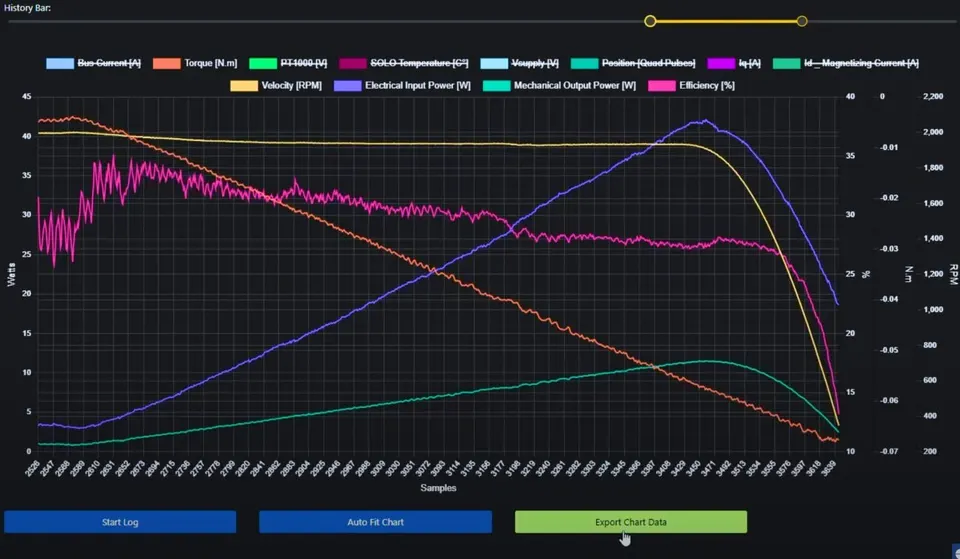
This matters for three reasons. You can compare runs before and after a change instead of trusting memory. You can share a trace with a colleague or with support when something looks wrong, which is far clearer than describing a wiggle in words. And you can build a small record of how a motor behaved, so the next person on the project starts with data, not guesswork.
Takeaway: export the trace and a one-off measurement becomes a record you can compare and share.
How SOLO Helps You Visualize Motor Behavior
SOLO Motion Terminal is built to make the motor’s behavior visible without extra equipment. The monitor mode plots Iq, Id, speed, position, bus voltage, and temperature from the controller in real time, and the same app handles configuration and tuning, so you stay in one place. It can log and export those signals to CSV for later analysis. The goal is to support your tuning and diagnostics with a clear, live view rather than a separate scope on the bench. You can explore the SOLO Motion Terminal and connect your controller to try the monitor.
Conclusion
The built-in oscilloscope turns Motion Terminal into a live window on your motor. It plots up to four signals at once, and the ones you reach for most are Iq and Id for the current loop, plus speed and position for the motion. Use it the simple way: change one gain, step the setpoint, and read the shape of the response. Then export the trace so you can compare runs and share what you find. If you want to see your own motor’s signals, the SOLO Motion Terminal page is the place to start.
FAQ
What sampling rate does the monitor use?
The monitor streams the controller’s internal signals fast enough to catch tuning transients like overshoot and startup current spikes. It is meant for watching the control loop, not for calibrated, lab-grade measurement. For most tuning and diagnostic work, the live rate shows you what you need.
Can I log and export the data?
Yes. You can log the captured channels and export them, typically to CSV, so you can open the trace in a spreadsheet or your own tools. That lets you compare a run before and after a change, or share the data with a colleague or support.
Which signal represents motor torque?
Iq, the torque-producing current, is the closest live indicator of torque. In field-oriented control, torque is roughly proportional to Iq, so watching Iq is the practical way to see torque without a separate sensor. Id, the field current, normally stays near zero except during field weakening.
Related articles
Tuning Sensorless Injection (Amplitude and Frequency) on SOLO
How to tune the ZSFT injection amplitude and frequency on SOLO for stable, low-noise sensorless control at standstill and low speed. A Motion Terminal guide.
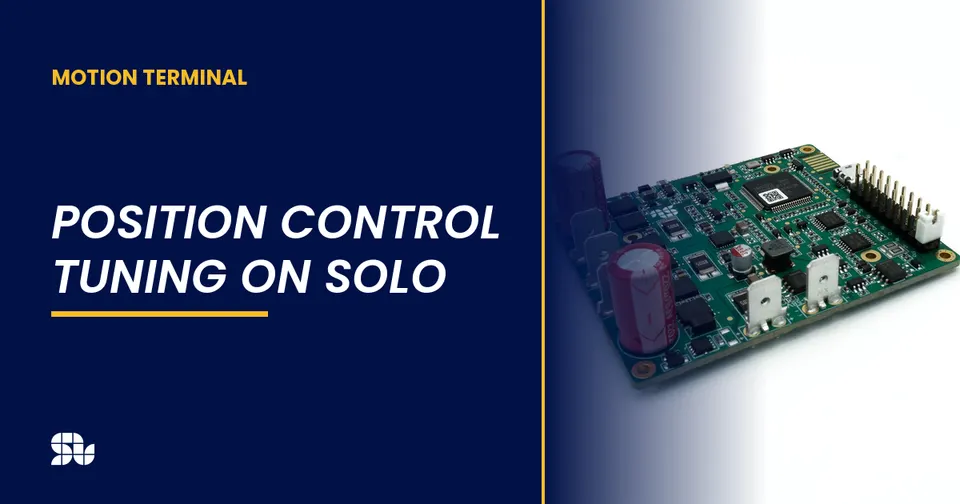
Position Control Tuning on SOLO: Kp and Ki for Accurate Positioning
How to tune the position loop on SOLO: set Kp and Ki for accurate, stable positioning without overshoot. A practical Motion Terminal guide.
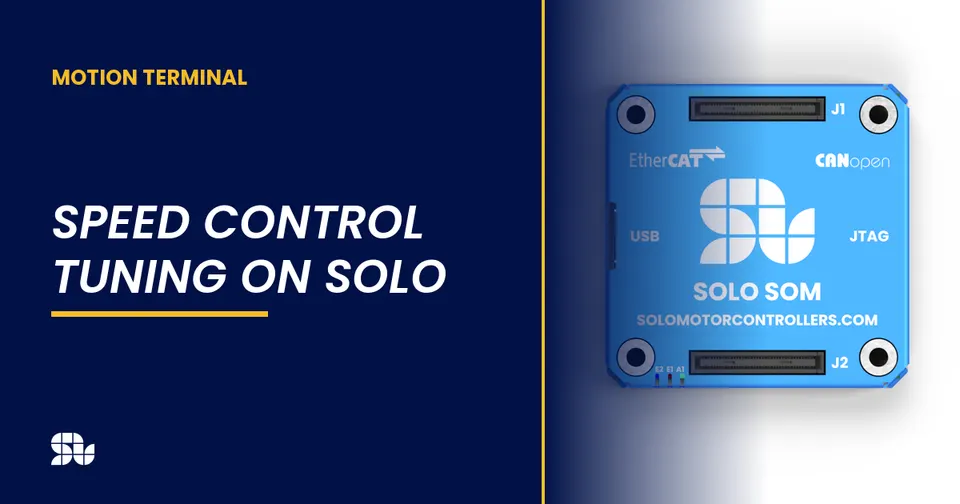
Speed Control Tuning on SOLO: Kp and Ki Without Overshoot
How to tune the speed loop on SOLO: set Kp and Ki for a fast, stable speed response under load, without overshoot. A Motion Terminal guide.
